Related Topics
 This topic discusses a feature that is under active development, and is subject to change without notice.
Installations using Process Director v6.1.500 that also have the Approvia AI AI feature enabled can upload custom documentation to be ingested into Approvia AI via the Rag Management page.

Retrieval-Augmented Generation, or RAG, is the term used for custom data used to train Approvia AI for use in responses, such as chatbot conversations. Examples of RAG data might be documentation for complex applications you've created, or for the custom UI and workspaces that your users can access.
Approvia AI will ingest and train itself on these RAG documents to provide responses to user prompts/queries to the system. This RAG data will be used in addition to the standard information from BP Logix, like the general product documentation. This feature will enable Approvia AI to answer both general queries about the operation of the system, as well as queries about the custom applications or user interface that your organization has constructed.
Adding and Synchronizing RAG Data
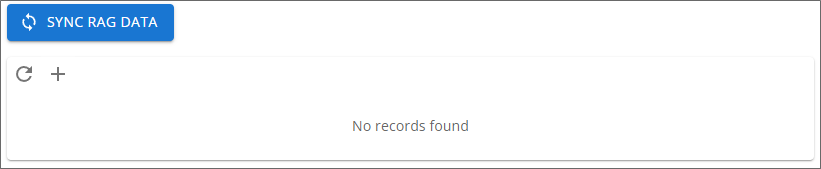
To add RAG data to the system, click the Add (+) icon. When you do, the Open dialog box will open to enable you to navigate to the document(s) you wish to add to the system and select them. Allowable document formats for RAG data are: .txt, .pdf, .docx, .doc, .xlsx, .xls, .csv, .json, .xml, and .md. Once added to the system, the uploaded documents will appear in the list of RAG data documents in a Data List control containing 10 documents per list page.
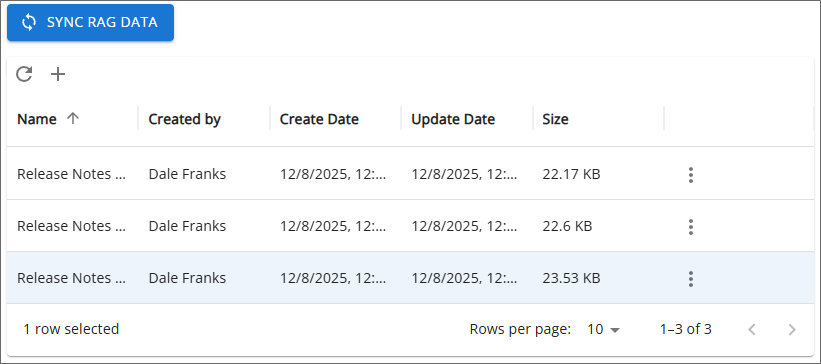
Once the documents have been uploaded, you can send them to Approvia AI for training by clicking the Sync RAG Data button. A message will appear on the page to notify you that the documentation has been synchronized to Approvia AI.
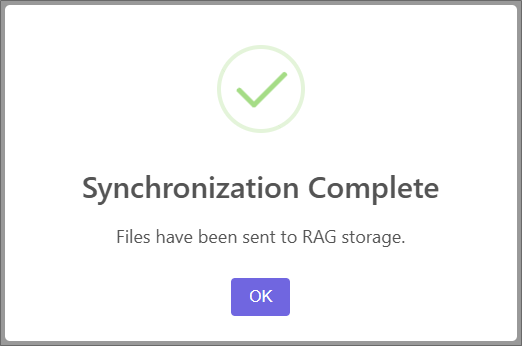
You can dismiss this message by clicking the OK button.
Deleting RAG Documents
A RAG document can be deleted from Approvia AI by accessing the Menu icon on the right side of the document's row, and selecting the Delete menu item.
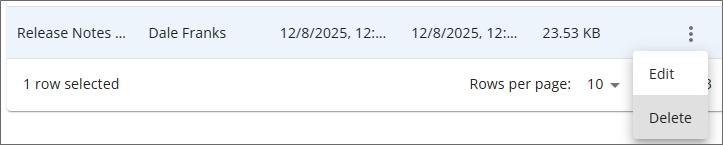
A confirmation dialog box will appear to confirm the document's deletion.
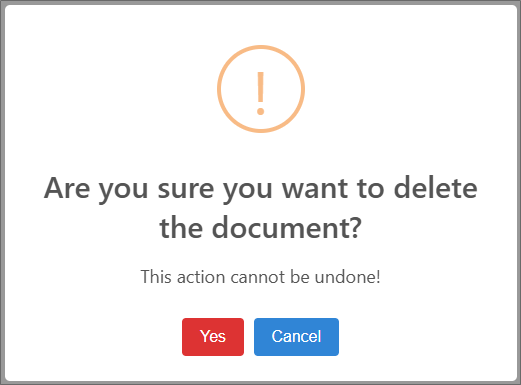
You can escape the deletion process by clicking the Cancel button. Clicking the Yes button will permanently delete the document from the system, and a message dialog will appear to notify you that the document has been deleted.
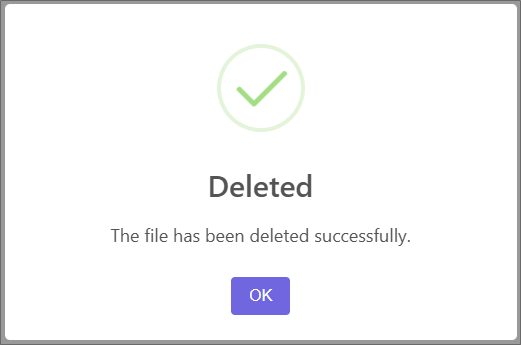
Once a document has been deleted, click the Sync RAG Data button to synchronize the local set of documents with Approvia AI, to remove the RAG document from Approvia AI.
If you need to replace a RAG document with an updated version, first delete the original document, upload the replacement document, then click the Sync RAG Data button to synchronize the updated content with Azure AI Foundry.
Writing RAG Content #
Writing training documents that will be used by LLMs can be somewhat different than writing for people. People can make intuitive connections between topics that LLMs can't. An LLM doesn't have this intuitive understanding, so when asked a query about these features, it often can't make the connection between them.
When an LLM ingests a document, it "chunks" the document for indexing. It looks for each Heading (h1, h2, etc.), and groups the content contained in that heading in "chunks" of 512 tokens. (A token is more or less equivalent to a word.) The ingestion process also starts a new chunk for each new heading. It assumes that all the content inside the heading is related, so it chunks it together. So, when you have similar features that are widely separated in the RAG documentation, especially if they're under a different heading, they get ingested in different chunks. The LLM often won't make connections between those chunks.
You should group all similar topics together in the document, under the same heading. You should also simplify the RAG document by not using tables, images, or other complex formatting. You should generally restrict RAG documents to properly organized headings and text content only.
Markdown File Format
In general, LLMs use Markdown as the basic file format. If you upload a document in a different format, like Microsoft Word, the LLM will convert the document to Markdown format for ingestion using a utility like Pandoc. Unfortunately, converters like Pandoc aren't perfect — Word tables often get lost or truncated during the conversion. Because of these conversion issues, you might want to do the Markdown conversion yourself, then edit the Markdown file to correct any conversion errors.
Here are some practices to consider when producing RAG documentation: Get familiar with Markdown — the basics are very simple and it's a useful skill. Get a good text editor that works well with Markdown. Simplify the original document by converting tables to text and removing images and other complex formatting prior to conversion. Group all similar topics together under the same heading. Do the Markdown conversion from Word yourself. Check the converted file against the original for conversion errors. Don't be afraid to edit the Markdown file when necessary.
Once you've uploaded RAG documentation and the system has had time to ingest and train itself on it, be sure to test it via the Approvia AI chatbot. Ask questions about your RAG content, and gauge how well the system answers your queries. If you aren't happy with the answers, you can edit the RAG documents by adding one or more additional headings at the bottom of the document that contain the desired content at the desired level of detail. Delete the original document from the RAG Management page, upload the edited document, then synchronize with Azure again.
Documentation Feedback and Questions
If you notice some way that this document can be improved, we're happy to hear your suggestions. Similarly, if you can't find an answer you're looking for, ask it via feedback. Simply click on the button below to provide us with your feedback or ask a question. Please remember, though, that not every issue can be addressed through documentation. So, if you have a specific technical issue with Process Director, please open a support ticket.