Related Topics
For customers who have a Cloud or Subscription license for Process Director v5.31 and higher, the Template Library enables you to easily replicate an existing Template as a new application.
Many organizations have specific design guidelines that they would like to see replicated in any application. For instance, a specified logo, color, or font might be required to display on each form exposed to end users, along with some commonly required Form fields. Additionally, system administrators might want to provide one or more "shell" applications with an associated Form and Process Timeline already provided for each new application, simply to save on the time and tedium of creating the same objects from scratch. Templates enable you to achieve those objectives easily. Please see the Creating an Application Template topic for more information on how to create a template for this purpose.
A Template is a pre-made application, containing all of the design features and functionality you desire, to use as the basis of a new object. The Template can be as simple as a single form with some font and color styling, or as complicated as a fully functional application that you need to replicate. Any Process Director object, or collection of objects, can be used as a Template.
Once you have created a template, the Template Library feature enables you to select that template as the starting point for a new application by copying the existing template and placing the copy of it in any desired location on your Process Director installation. All of the existing configuration options of the template objects will be replicated in the new application.
Editing Templates
Another benefit of the template library is that you can customize any of the template applications. All changes you make to a template application will be reproduced automatically every time you use the template to create a new application. For instance, you might edit the forms in the different template applications to change your organization's logo or colors in the Form's design. When you create a new application from the template, your forms will reflect the form design changes you made.
Keep in mind that changing the form fields may affect how the application works, so you need to keep the application's architecture in mind. A field linked to a Dropdown object, if deleted, may require that the Dropdown object also be deleted as unnecessary. Similarly, a field evaluated by a Business Rule, if removed, will make the Business Rule non-functional and, in turn, cause any Needed When condition on a Process Timeline activity that uses that rule to fail when the Process Timeline runs.
If the application contains any Business Rules, you may need to alter them to reflect changes you've made to the Form or Process Timeline. You'll want to check the Email Template to see what information is being sent in notifications and make whatever adjustments you find necessary. Check the Knowledge Views after making form changes. If you removed or added Form fields, you'll want to ensure that the Knowledge View is returning valid form fields and add any additional fields you'd like to display. Finally, check any Dropdown, Datasource, or Business Value objects to ensure the data to which they are connecting or returning is valid for your application.
Similarly, adding new activities or removing existing ones may affect the application's architecture. If you change the verbiage of User activity results, that may also affect the Looping or End Timeline activity conditions. Understanding the application's architecture before making changes or customizations will help you avoid creating unexpected behaviors, because you'll understand the implications of your changes before you make them.
Changing the Name of a Business Rule or other Process Director object will not affect the operation of the application. Process Director tracks object identities through an ID value, and the name is updated automatically in linked objects if you change it.
The [Template Library] Folder #
For the Template Library feature to work properly, you must have a [Template Library] folder at the root level of the partition.
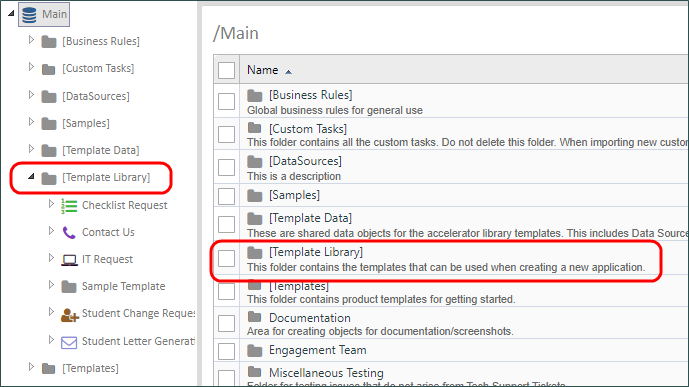
If you don't have this folder installed by default, you can simply create it at the root level of the partition. Once you have done so, you now have a template container folder that can be used for that partition. If you have multiple partitions on your installation, each partition will require its own [Template Library] folder.
 For v6.1.100 and higher, installations without a [Template Library] Folder will display an error message to that effect on Staging and Development systems.
Inside the [Template Library] folder, each template application must reside in its own subfolder. If you do not have any template applications inside this folder, you will not, obviously, be able to replicate the template to create a new application. So, in addition to having the [Template Library] folder, you must have one or more application templates that reside inside the [Template Library] folder. Installing the BP Logix templates will, as mentioned, provide several template application for use. If, on the other hand, you manually create a [Template Library] folder, you'll need to supply at least one template application in a subfolder before you'll be able to create a new application from a template.
In general, a template application consists of:
- A pre-built form that contains some useful form fields.
- A Process Timeline that is linked to the form and configured to start when the form is submitted. There are usually some partially configured Timeline Activities in the Process Timeline.
- An email template that is used to send notifications from the Process Timeline.
- Additional objects such as Knowledge Views for reporting, and Dropdown objects for pre-filling the options in dropdown controls.
For Process Director v6.0.300 and higher, if you do not have a [Template Library] folder, or if the folder contains no application subfolders, the user interface will display a dialog box notifying you that no templates are available.
When creating the subfolder for a template application be sure to give the folder a logical Name for the application. Additionally, you should provide a description for the folder in the Description field. The description you write here will be displayed to the user when they choose a new template for creating an application, so provide a description that describes the purpose of the application.
Pre-Built BP Logix Templates
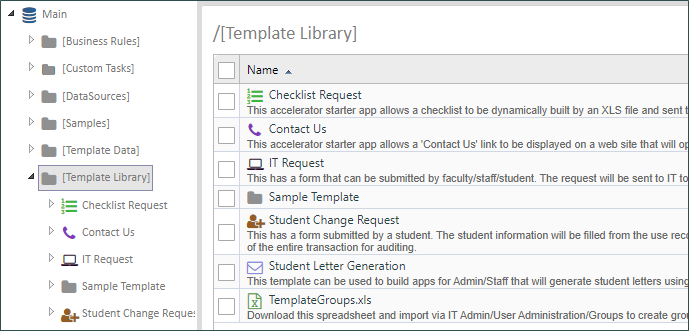
BP Logix provides some pre-built template applications that can be downloaded from the BP Logix Support site's Download page, in the section labeled, "BP Logix Template Library". The download file is a zipped PDZ file that can imported into the root of any partition. When importing, the PDZ will create the [Template Library] folder at the Partition root. This folder will contain several template applications from BP Logix that you can use as starter templates. The Import will also create a [Template Data] folder that includes some Dropdown Objects, Business Values, and an Internal User Database data source for use in the pre-built template applications. This folder is required for the pre-built applications to work properly. There's also an Excel spreadsheet with administrative items like user Groups that must be edited and imported into your system prior to using some of the pre-made template applications. This Excel file is named TemplateGroups.xls.
In the example above, there are seven different template application folders, each of which contain the appropriate Forms, Process Timelines, and other objects. When using the Template Library feature, all of the objects in the selected [Template Library] subfolder will be replicated into the location you desire.
Requests applications handle a request with approval steps. Checklist applications enable you to dynamically build a list of actions that can be sent to users for completion. Letter Generation templates enable you to use Process Director to dynamically create and send letters. Feedback applications enable you to build applications to collect feedback.
For the pre-built BP Logix templates, an additional folder [Template Data], will be installed when you import the templates PDZ file. This folder contains some universal data objects, such as a Datasource object that connects to the Internal User Database to store and retrieve custom data, Dropdown objects used across multiple application forms, Business Values, and other data objects that the BP Logix template applications use. You can customize these items, and changes you make to the objects in this folder will be reflected automatically across all template-based applications. If you have data objects that you want to use for your own template applications, you can place your custom template data objects in this folder as well, though, for most purposes, placing them in the general Content List folders for global objects, such as [Data Sources], [Dropdown Objects], etc., is a better option. The [Template Data] folder is included in the import of the BP Logix template applications largely to avoid inadvertently overwriting your existing global object folders.
Some Template applications contain a form that uses the Bootstrap framework for the Form's layout, using controls from the Responsive Layout controls menu. These controls are only available if your Process Director installation has enabled Bootstrap. If you have Bootstrap enabled on your system via the fIncludeBootstrap custom variable, you can use the Bootstrap Form in place of the standard form.
Creating an Application from a Template Library #
To create a new application from the Template Library, you can create it directly from a Content List folder, and, for Process Director v6.0.300 and higher, from the Home page.
Creating from the Content List
First, navigate to the folder location in which you'd like to create the application. Then, select the [Start from Template] option from the Create New... dropdown menu.
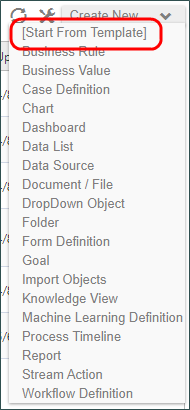
The Create new using Starter dialog box will open to display the list of [Template Library] subfolders from which you can select the desired template. All of the existing Template templates will be shown as clickable buttons.
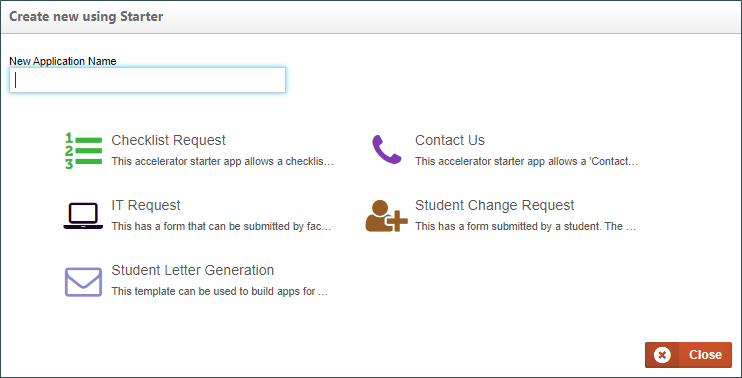
In the New Application Name text box, type the name you want for your new application. The name you type here will be used to name the folder that will contain your new application. This name will also be appended to the names of all Process Director objects created in the new folder. Below the New Application Name text box, a list of all of the template folders contained in your [Template Library] folder will appear. In the case of this example, we have the Template folders we referred to above. Simply click on the desired template folder to select it. When you do so, a confirmation dialog box will appear, asking you to confirm this choice.
Once you confirm the choice in the dialog box, Process Director will automatically copy the template into a new folder in the location you chose.
In this example, we used "New Application" as the name for our sample application.
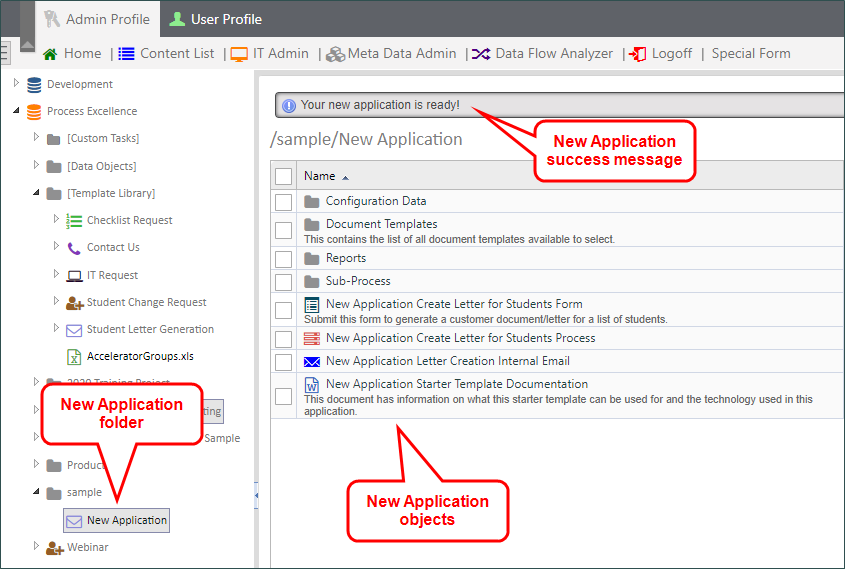
The New Application folder displays the name we provided in the New Application Name text box. Additionally, the names of the template objects will also display the same name, "New Application", appended to the original object name. Objects in subfolders will be similarly renamed. A success message will also appear, notifying you that the application is ready for editing. You can now configure the new objects as you desire.
Create from the Home Page
For Process Director v6.0.300 and higher, the Home page displays a panel labeled "Create from a Template", which enables you to create a new template-based application. A Learn More link will, when clicked, open this documentation topic in a new window.
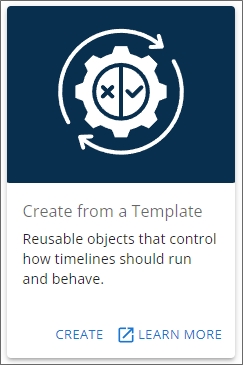
The Create link will, when clicked, open a wizard that will guide you through the process of creating the new object you desire.
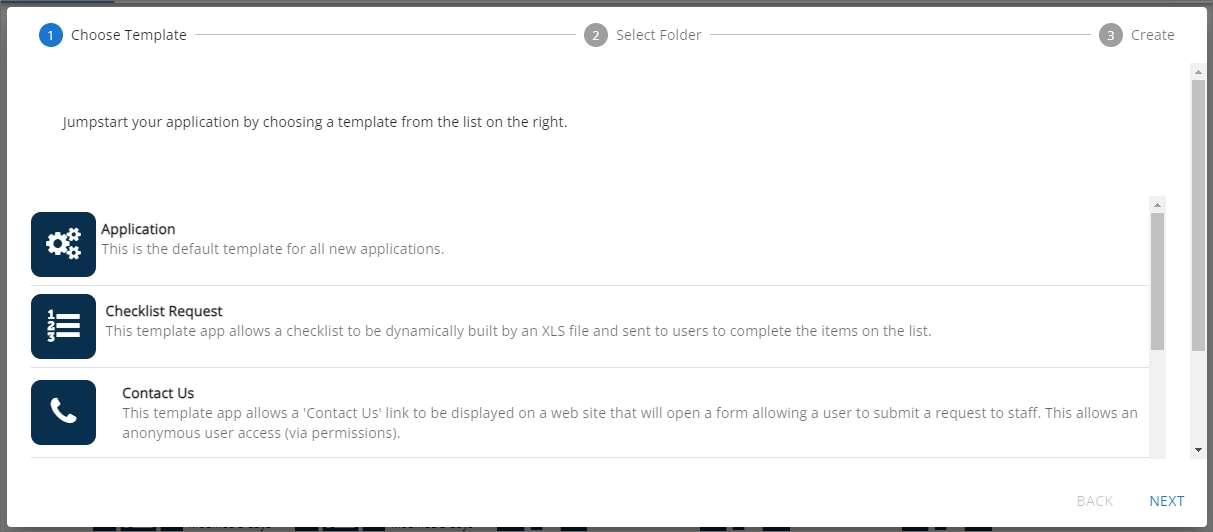
The first pane of the wizard is the Choose Template pane, which displays a list of all of the application templates that exist in the [Template Library] folder of your installation. Simply scroll to the template you wish to use, and click it to select it. For this example, we'll choose the Application template. Once you've selected a template, click the Next button at the bottom right corner of the wizard to advance to the Select Folder pane.
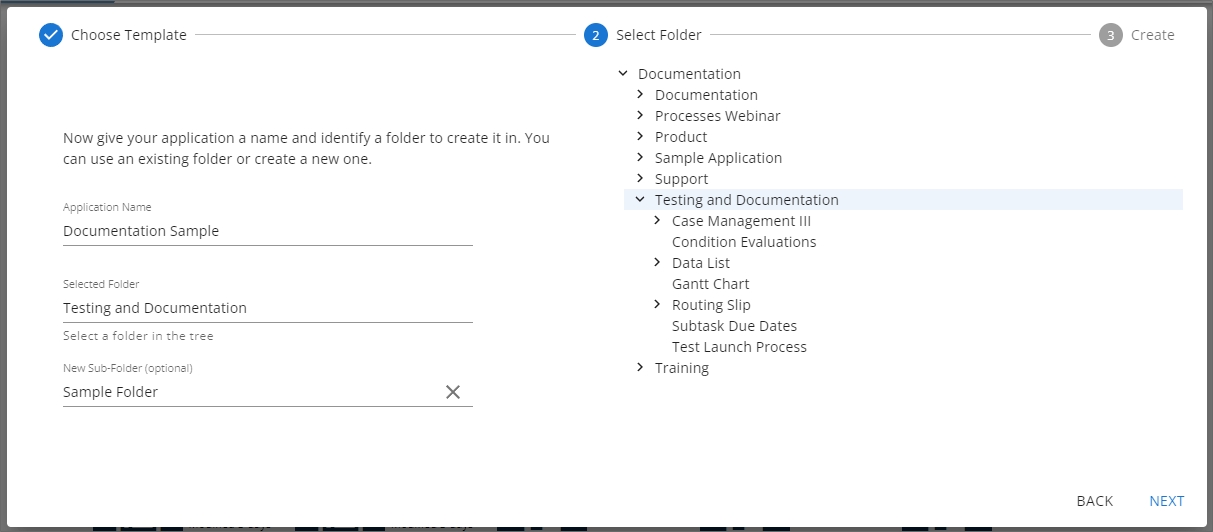
On the left side of the Select Folder pane, enter the name for the new application in the Application Name property. Once you've done so, you can navigate through the folder list displayed on the right side of the pane to find and select the folder into which you want to add the new application by clicking it (The folder must already exist in the Content List). When you do so, the folder name will appear automatically in the Selected Folder property, as shown above. If you'd like to place your application in a new folder that does not yet exist on the system, you can optionally enter the name of a new subfolder to create in the New Sub-Folder property. Keep in mind that the application itself will automatically be created in its own new folder, so if you add a New Sub-Folder, the application will still be created in a new folder inside the specified subfolder.
So, in the example show above, the new application, which will be named Documentation Sample, will be created with the following folder structure:
Documentation/Testing and Documentation/Sample Folder/Documentation Sample
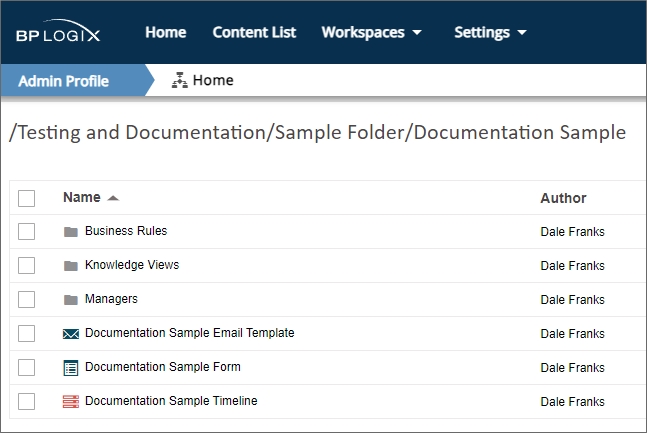
All of the application objects will be located in the Documentation Sample folder upon creation.
When you're done configuring this pane, click the Next button again.
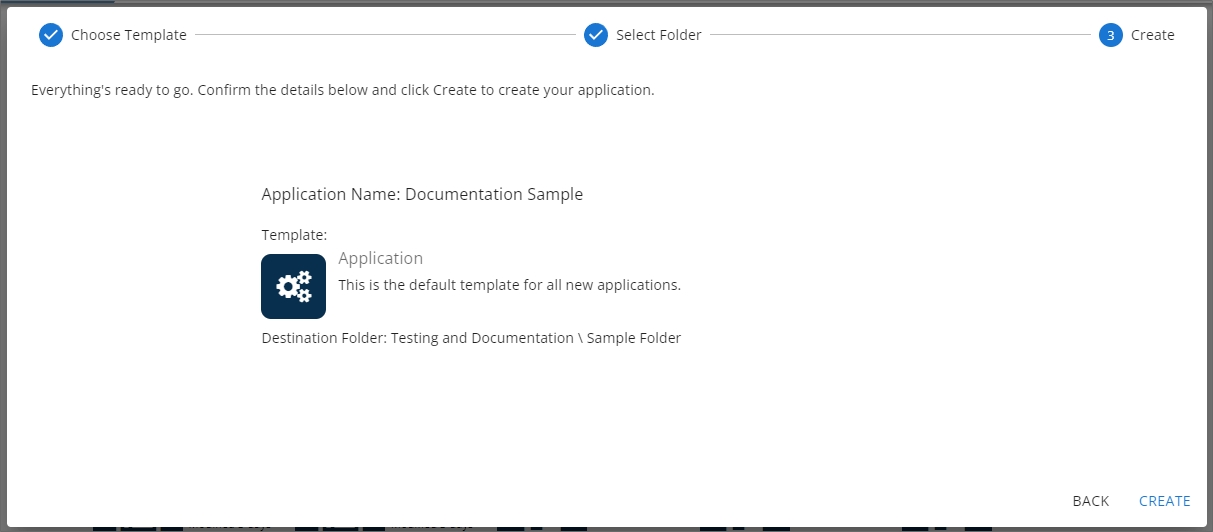
The Create pane enables you to review the choices you've made in the previous two wizard panes. You can, at any time, click the Back button to return to a previous pane to edit your choices. Once you finished reviewing your choices, you can click the Create button to create the new application. When you click the Create button, a "working" animated icon will briefly appear, followed by a success icon when the application has been created.
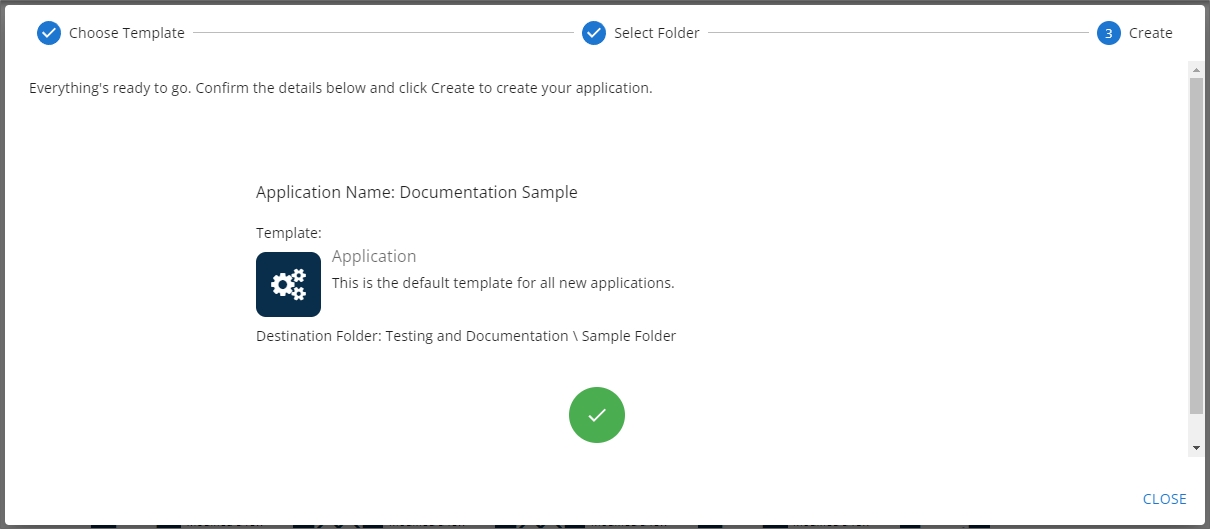
Click the Close button to exit the wizard. Process Director will automatically navigate you to the new application folder, which is Documentation Sample in this example, and open it for editing, so that you can complete its configuration.
Documentation Examples #
 Use the Simulator
Documentation Feedback and Questions
If you notice some way that this document can be improved, we're happy to hear your suggestions. Similarly, if you can't find an answer you're looking for, ask it via feedback. Simply click on the button below to provide us with your feedback or ask a question. Please remember, though, that not every issue can be addressed through documentation. So, if you have a specific technical issue with Process Director, please open a support ticket.